The basics
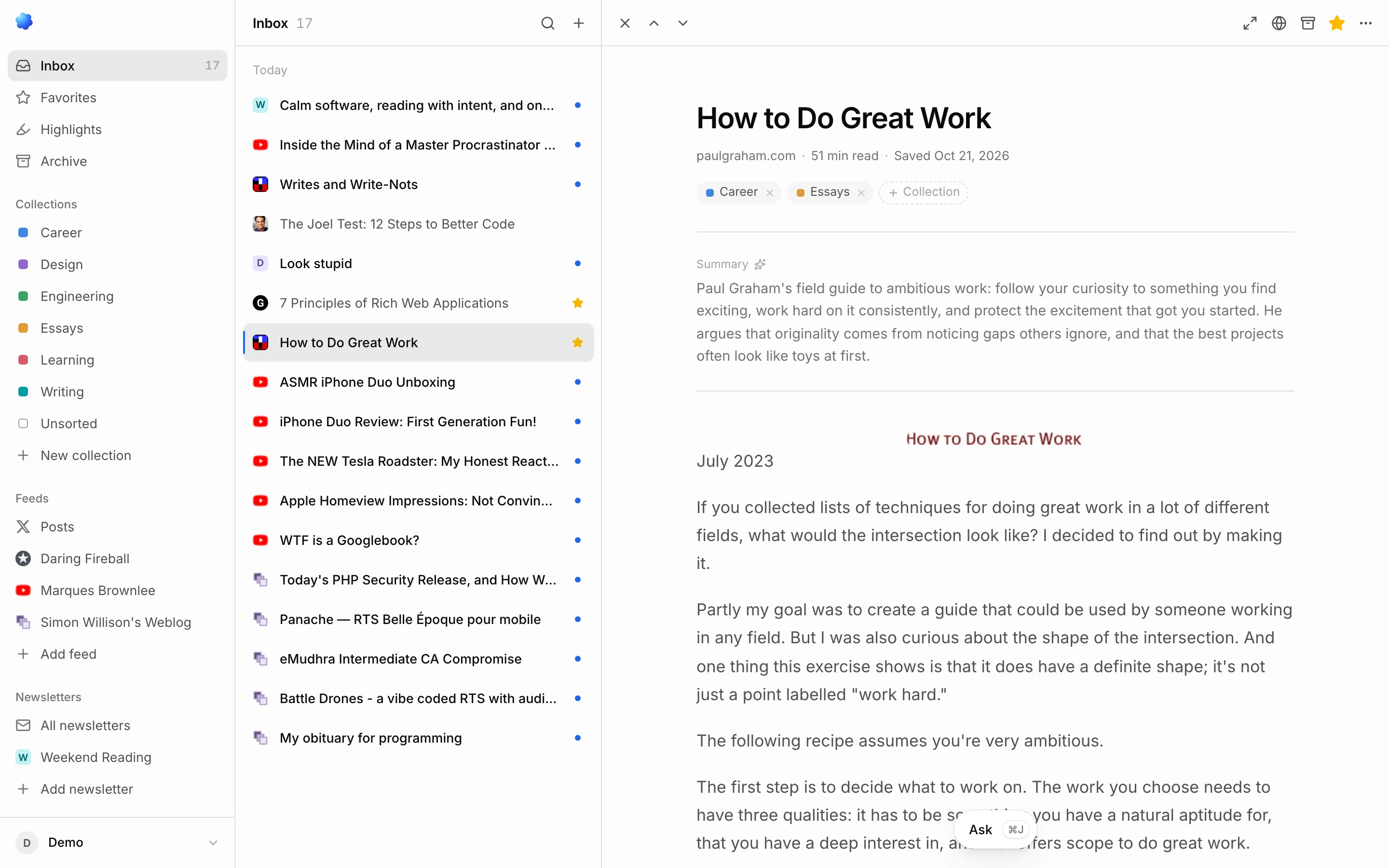
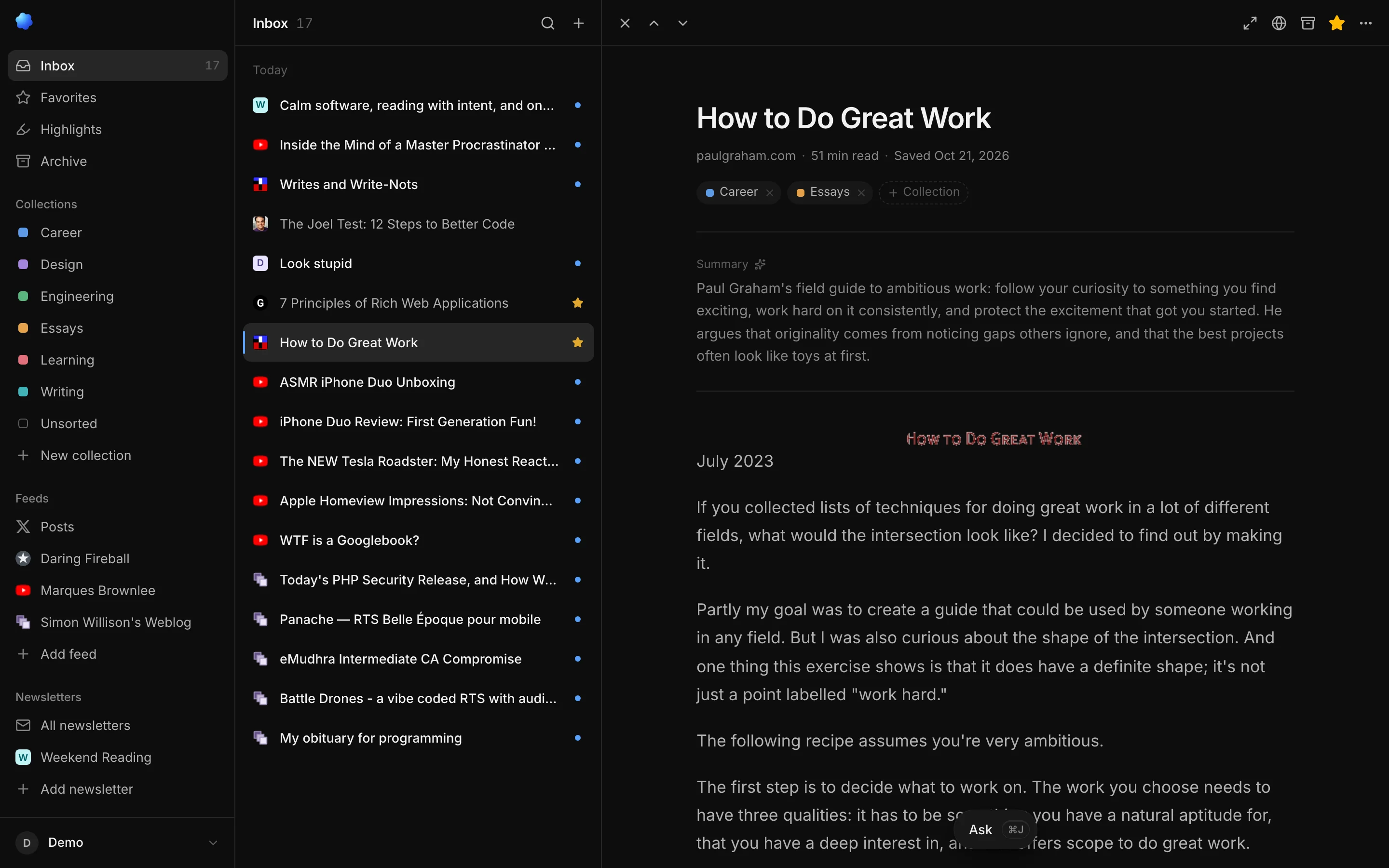
Stash works like a good inbox. New things arrive in Inbox. Open one to read it; it's marked read as you go. When you're done, archive it (E) and Stash moves you to the next one. Anything worth keeping, favorite (S).
The sidebar has a view for each stage:
- Inbox: everything new and not yet archived.
- The blue dot: marks a link you haven't opened yet, in any list.
- Favorites: what you've favorited, wherever it lives.
- Highlights: every passage you've marked, grouped by link.
- Archive: finished things. Still searchable, still yours.
Press / to search everything: titles, sites and the full text of every article.
A new library starts with one link, Welcome to Stash, and you can replay the tour from the top of this page. Every view and link has its own address, so refreshing the page keeps your place.
Saving links
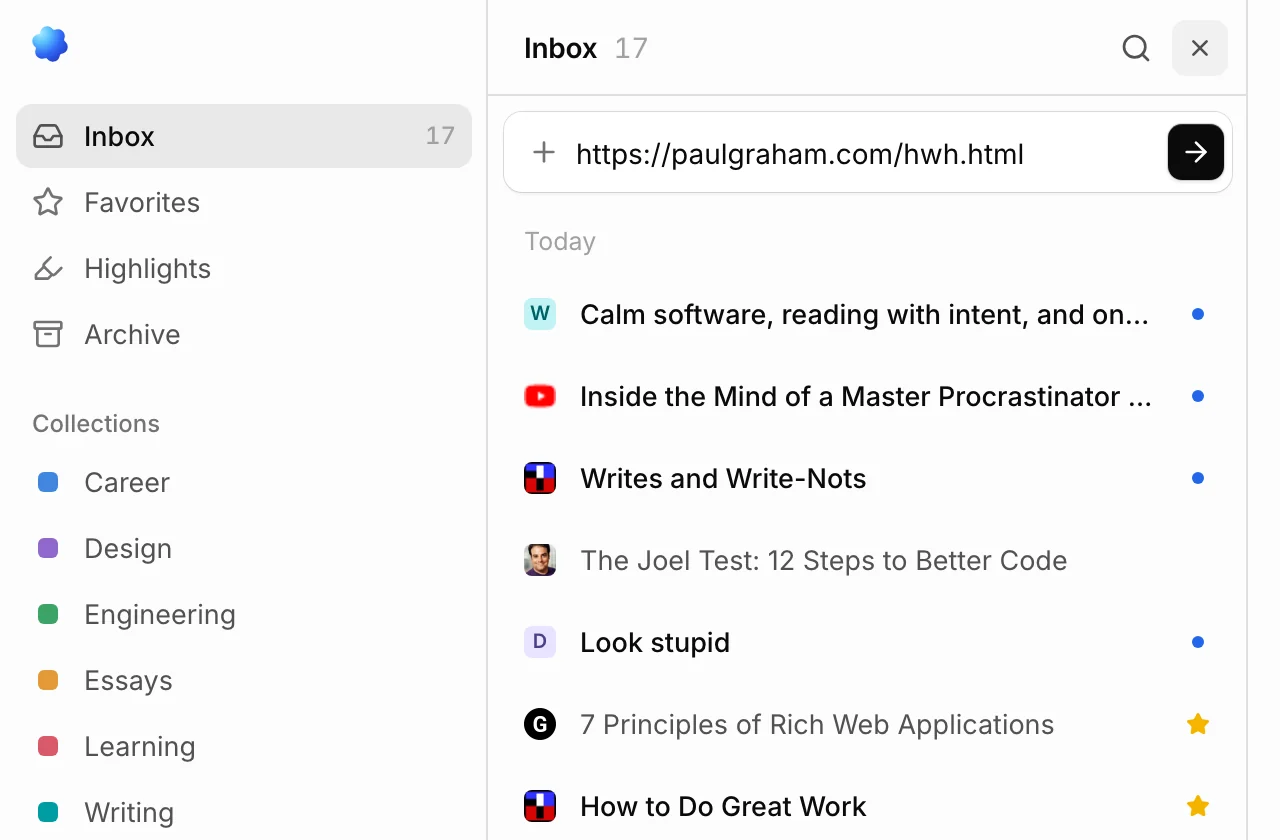
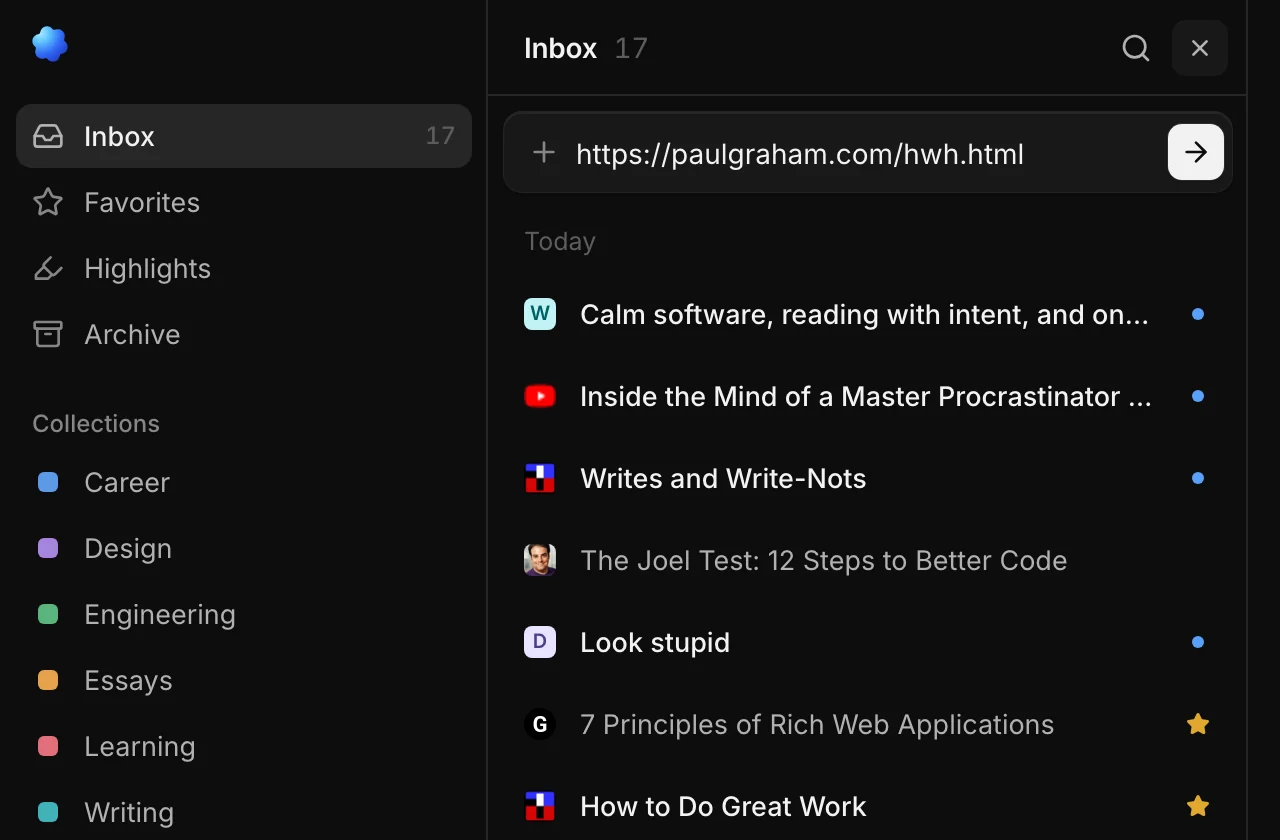
Press A (or the + at the top of the list), paste a link and press Return. Stash fetches the page, strips it down to the words, and keeps a copy, so it's still there if the site changes or goes away.
There are plenty of other ways in:
- The bookmarklet: drag it from Settings to your bookmarks bar, then click it on any page.
- Your phone's share sheet: add Stash to your home screen and it appears when you share a link (Android).
- Email: forward newsletters to your private address and they land under Newsletters. Choose Add newsletter in the sidebar to copy it.
- Inside an article: rest the pointer on a link and choose Save to Stash, or focus it and press A. Links you've already saved say Open in Stash.
- X bookmarks: connect X and new bookmarks arrive on their own.
YouTube videos play right in the reader, with their transcript underneath when the video has captions, so you can search, highlight and ask about what was said. Posts on X are saved as text, with their images.
Reading
The reader shows the article on its own, in comfortable type. Switch to the page as it was published with Original (V), or open it in your browser with O. A few sites don't allow that view; for those, Original shows the summary and an Open in browser button.
With AI turned on, a short summary appears at the top the first time you open something long.
Move through your list with J and K (or the arrow keys). The next few links load ahead of time, so moving on is instant. Your library is kept on this device, so Stash opens straight away, and anything you've opened before shows even offline.
For fewer distractions, press F (or the expand button in the reader) to Focus: the sidebar and list slide away and the article sits in the middle of the window. It stays on for everything you open until you turn it off, J and K still move through the list, and closing the article brings the list back.
Archiving the link you're reading opens the next one, in whichever view you're in. It's the fastest way through a backlog.
Highlights and notes
Select any text in an article and choose Highlight (or press H). Hover a highlight to read its note; click it to add or edit one, or to remove the highlight.
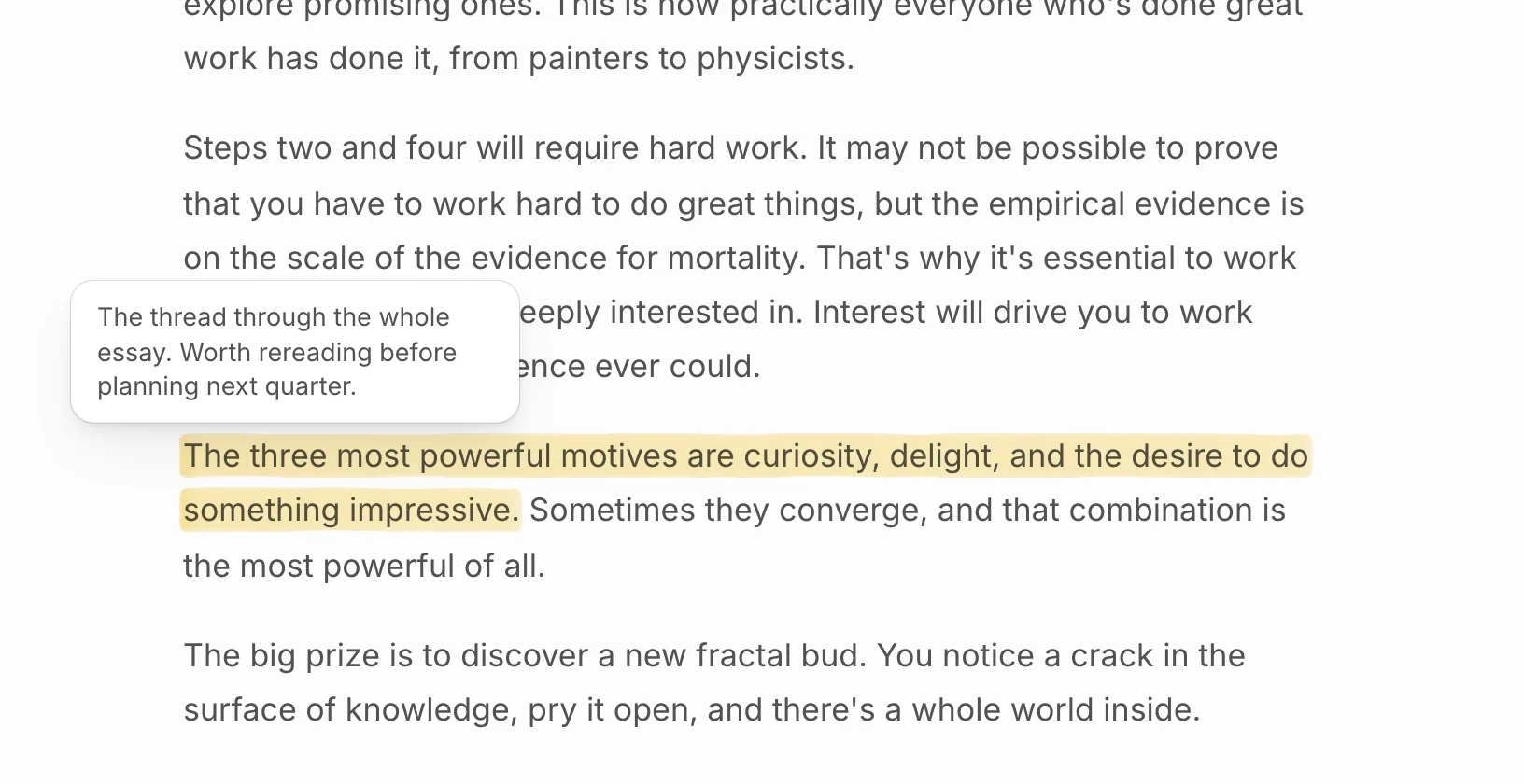
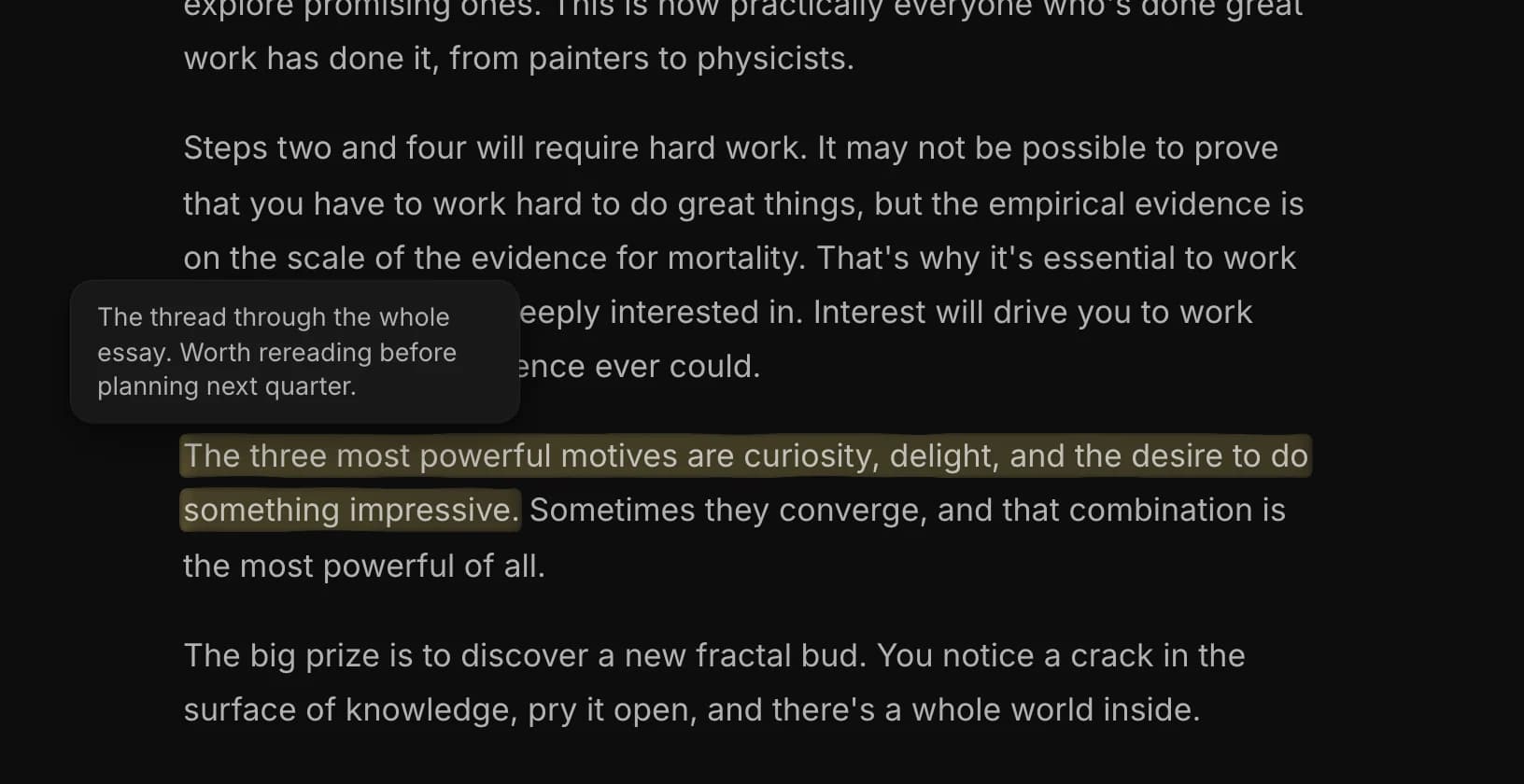
Highlights in the sidebar collects every passage you've marked, newest first, grouped by link. Click a quote to jump back to it in the article. With nothing selected, a few of them come back as cards, new each day.
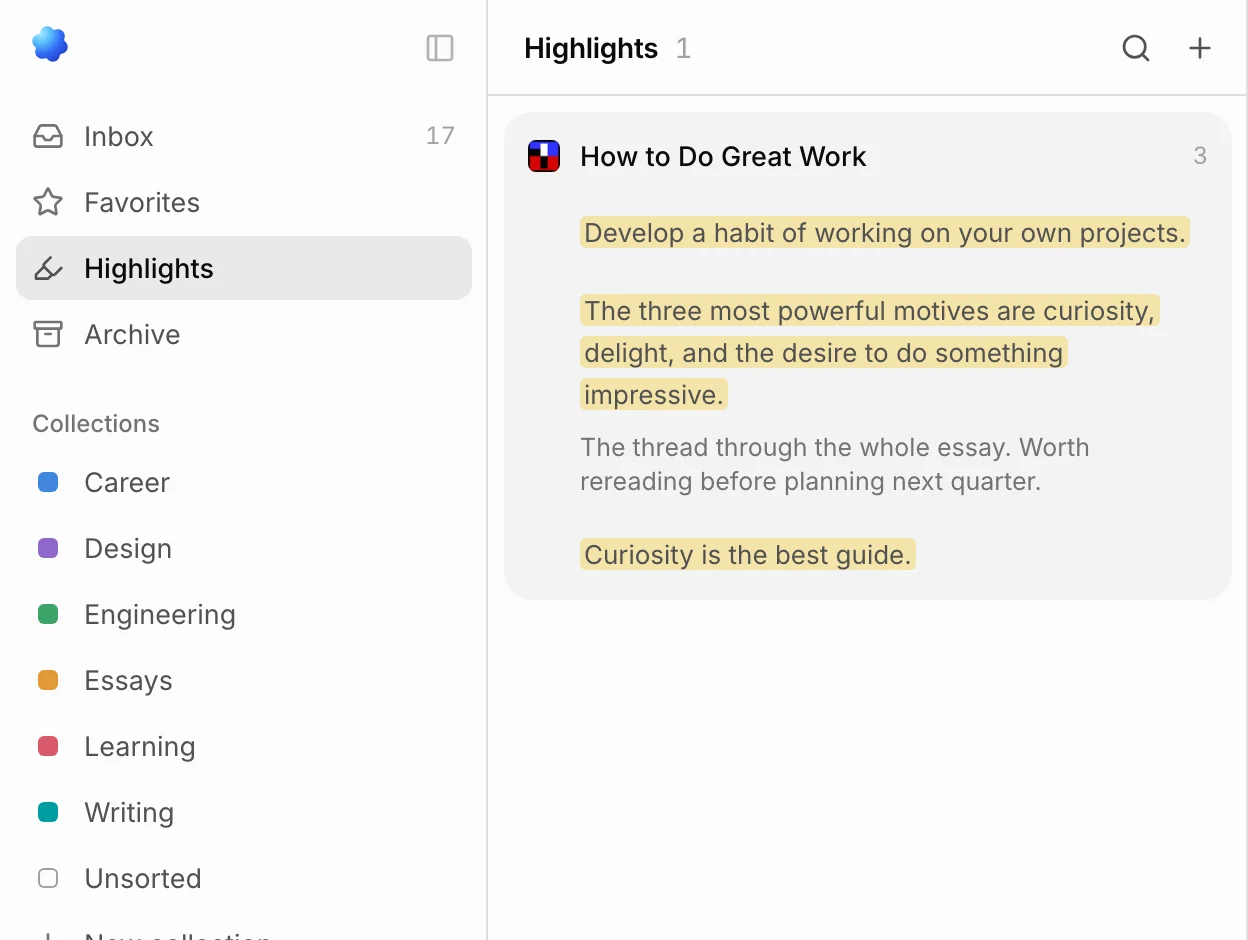
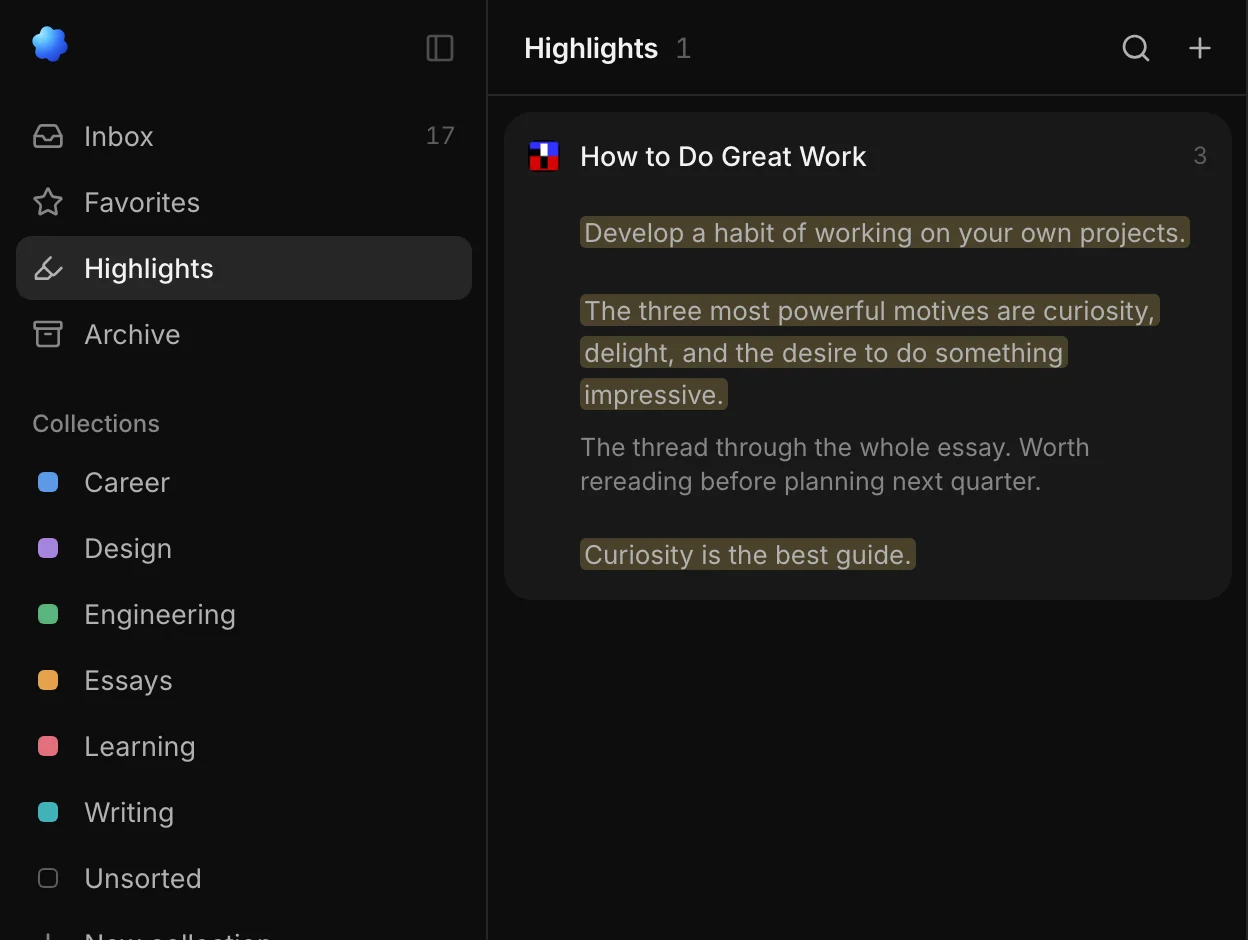
Highlights and notes travel with the link: into the ClickUp tasks you create, and into your export.
Ask
Press ⌘ J to ask about the article you're reading, or, with nothing open, about your whole library. Stash searches and reads your links to answer, and every answer links back to the links it used.
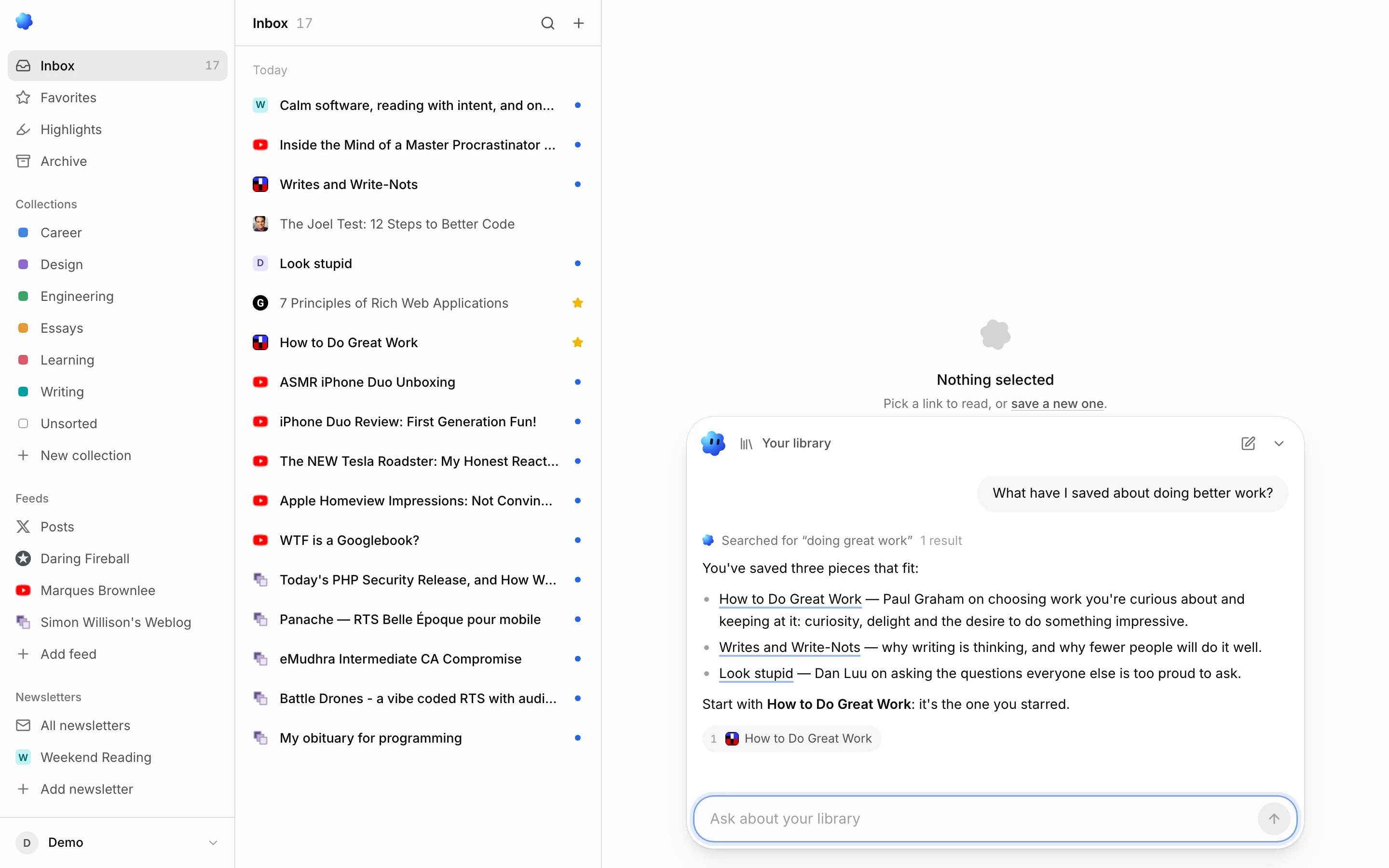
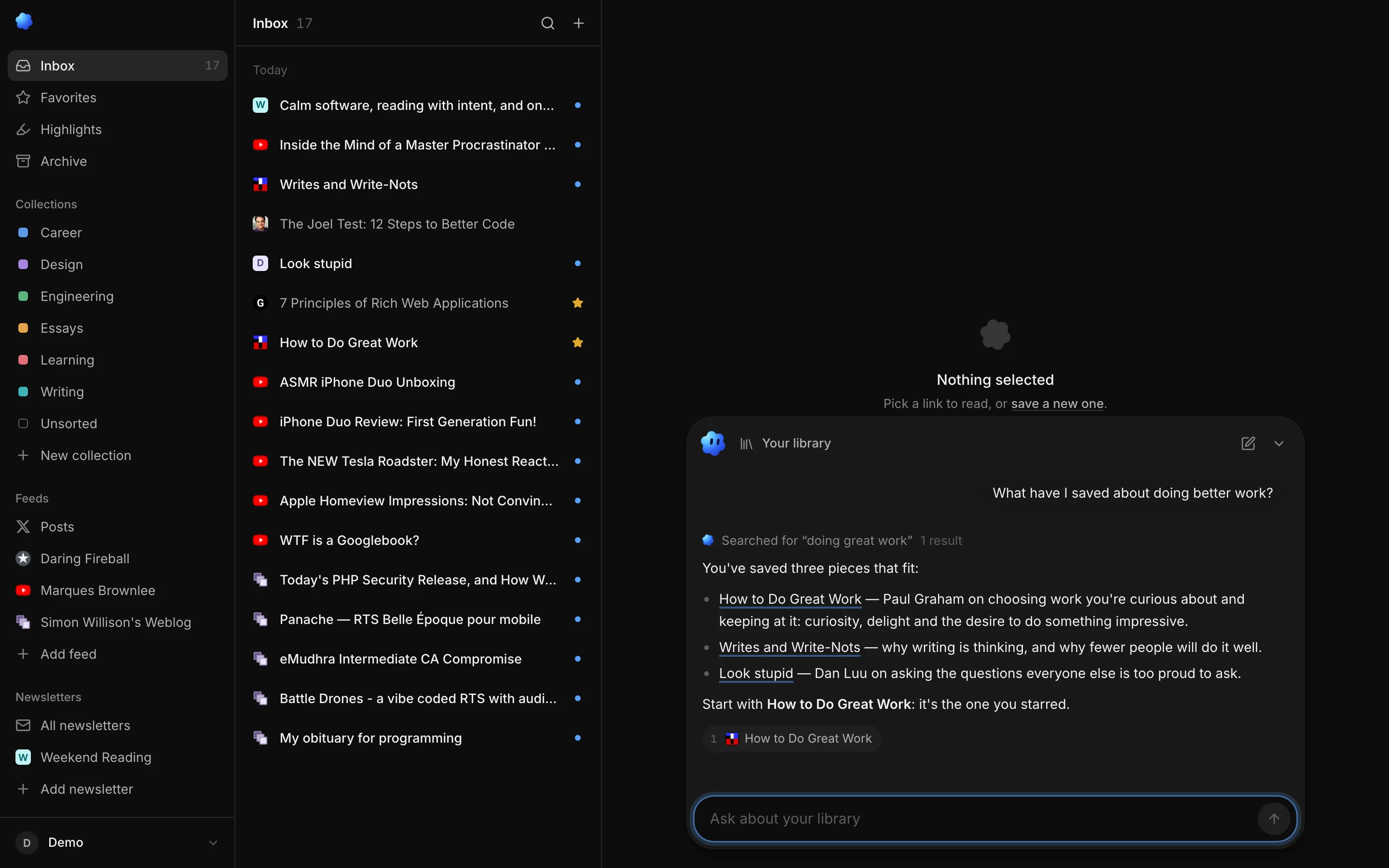
Select text in an article and choose Ask to ask about just that passage. Ask also follows where you are: in a collection, a feed, a newsletter or a view like Favorites, it covers just those links. From the Inbox it asks your whole library.
Ask can tidy up too: “merge Design into Interface craft”, “put everything about pricing in Pricing”. It shows the changes as a card you can trim, and nothing happens until you press Apply. Changed your mind? Undo.
Collections
Collections group links by what they're about. They sit at the top of the sidebar, each with its color; hover one to see how many links it holds. Choose New collection at the end of the list to start one: give it a name and a color, and tick the saved links that already fit. Unsorted, just above it, lists what you've saved that isn't in a collection yet. In it, the ⋯ menu has Auto-categorize, which checks those links against what belongs in each collection and shows where each would go. Accept them all, untick the ones you don't want, or change where one goes; nothing moves until you accept.
Add a link to a collection under its title. A link can be in more than one. Double-click a collection in the sidebar to rename it; its ⋯ menu changes its color, renames it or deletes it. Deleting a collection never deletes its links.
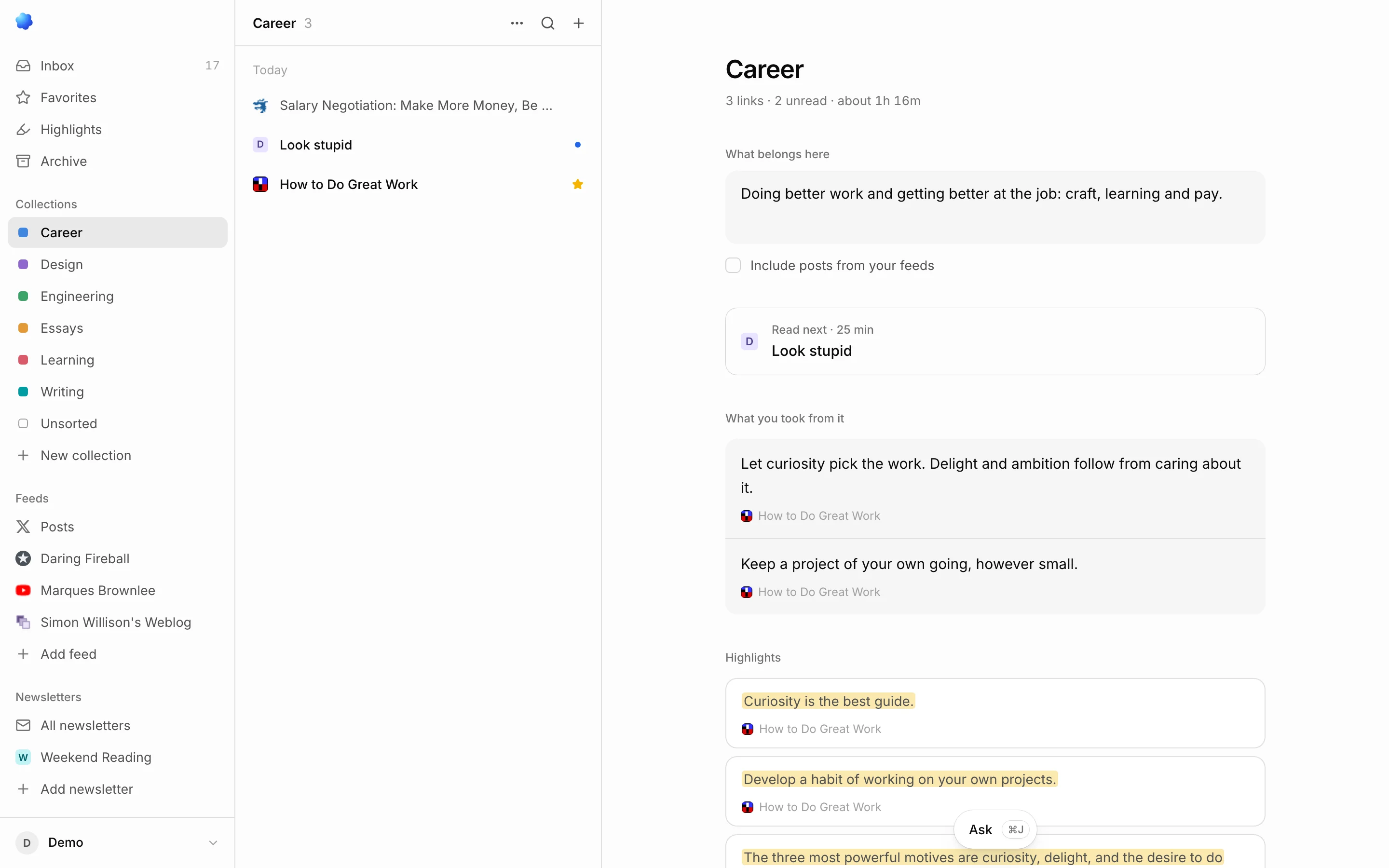
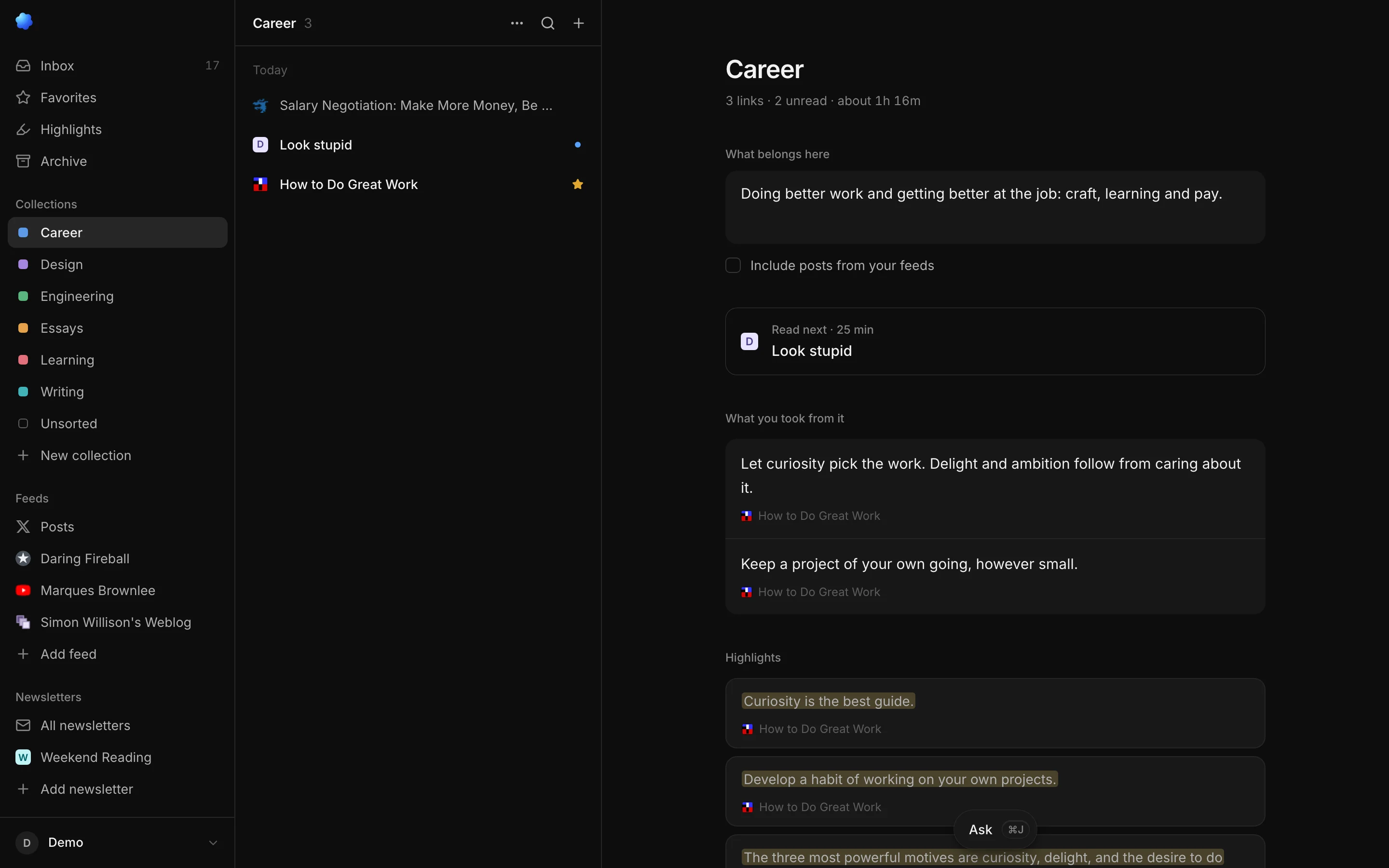
With no link open, the reader shows the collection's page. What belongs here is a sentence in your words: with AI turned on, new links you save, and newsletters as they arrive, are filed into every collection they clearly fit, and the app tells you where a link went, with Undo. Switch on Include posts from your feeds to file feed posts too.
Below it are the quickest unread link to read next and the collection's highlights. Once a collection has a few highlights, What you took from it sums them up in up to three takeaways, each linked to where it came from.
To act on several links at once, hover a row and tick its box, ⌘-click to add rows, or Shift-click to select a range. Then archive, favorite or mark them read together.
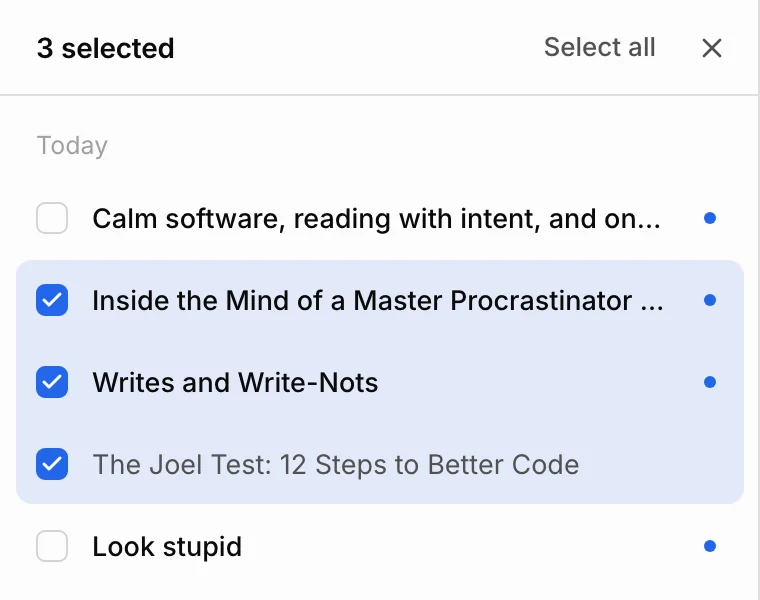
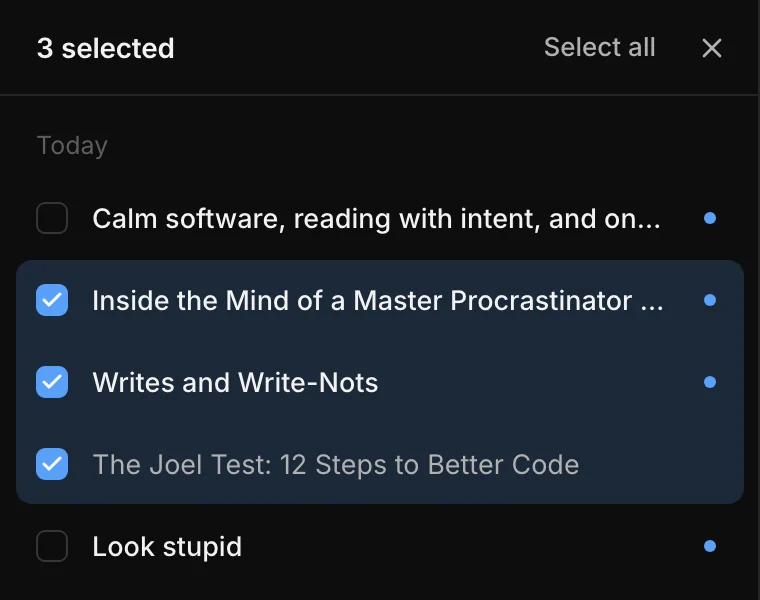
X selects the open link and ⌘ A selects the whole list. With a selection, E, U and S archive, mark read and favorite all of them.
Feeds, X and newsletters
Feeds
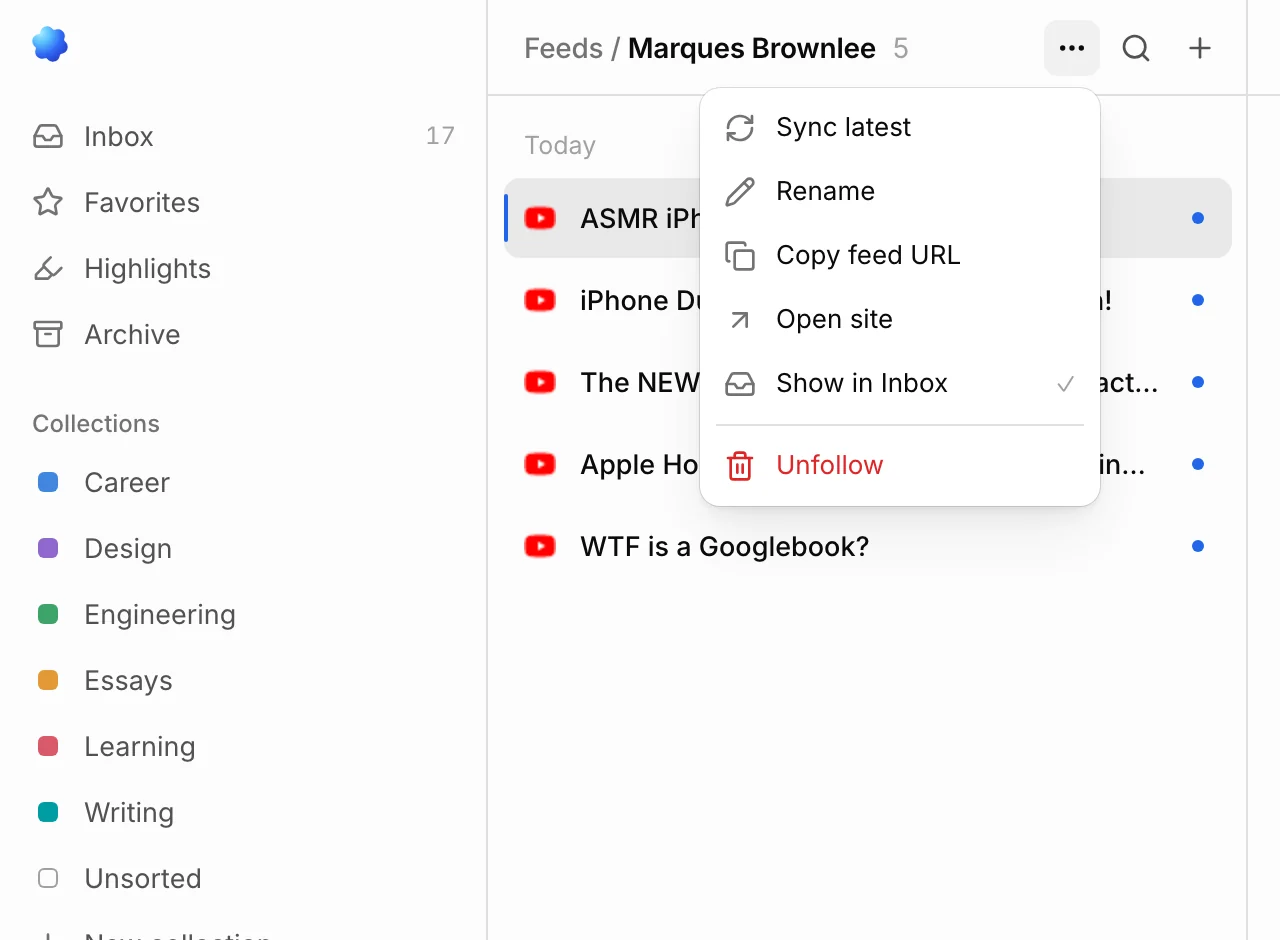
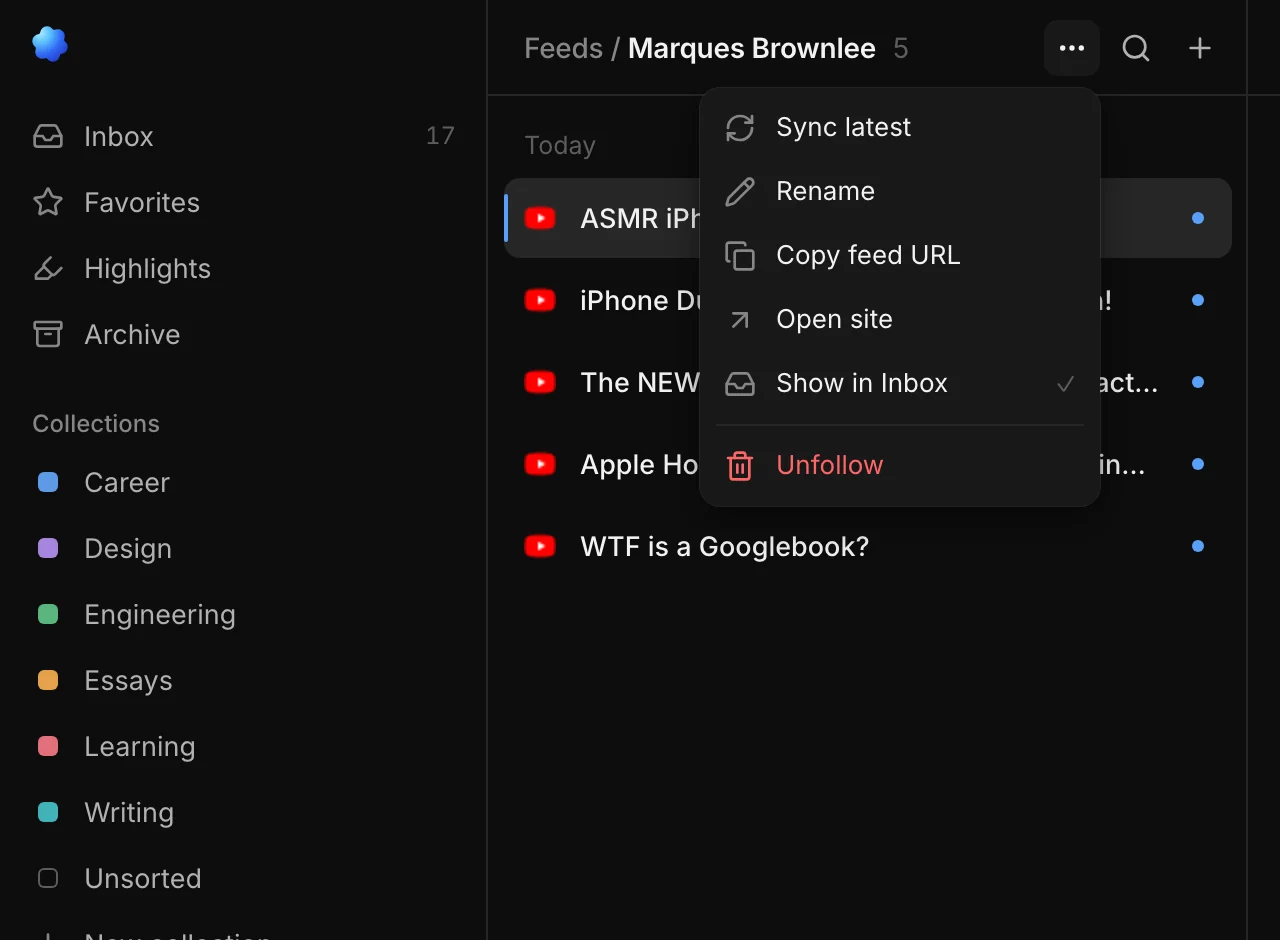
Follow blogs, news sites and YouTube channels: choose Add feed in the sidebar and paste a site, a feed address or a channel like youtube.com/@mkbhd. New posts arrive about hourly, and a feed keeps listing posts you've archived, like a collection. Each feed's ⋯ menu can sync it now, rename it, keep it out of the Inbox, or unfollow it.
X
Connect X in Settings and your bookmarks sync into the Inbox. You can also watch people: their new posts collect under Feeds → Watching, and in the Inbox too unless you turn Show in Inbox off (in Watching's ⋯ menu, or Settings).
Newsletters
Settings gives you a private email address. Subscribe to newsletters with it, or forward them there, and they arrive under Newsletters, cleaned up for reading, grouped by sender. Archived issues stay listed there too. Rotate the address any time.
To stop one, choose Unsubscribe from a newsletter's ⋯ menu, or from its sender in Settings → Newsletters. Stash asks the sender to stop when it can, and hides their newsletters either way, including new ones. Resubscribe in Settings brings them back.
ClickUp and MCP
ClickUp
Connect ClickUp in Settings and pick a List. Press C on any link to turn it into a task, with its summary, source, collections and highlights. Turn on automatic sending and every new link becomes a task.
AI assistants (MCP)
Claude, Cursor and other assistants can search, read, organize and save to your library. Add the server URL from Settings → MCP to your assistant and sign in with your Stash account. If an app asks for a key instead, create one in Settings → MCP.
Desktop app
Stash for macOS, Windows and Linux keeps your library in its own window, a click away. Choose Get the desktop app in the account menu.
On your phone
Open Stash in your phone's browser and add it to your home screen to use it like an app. Everything is in reach of your thumb.
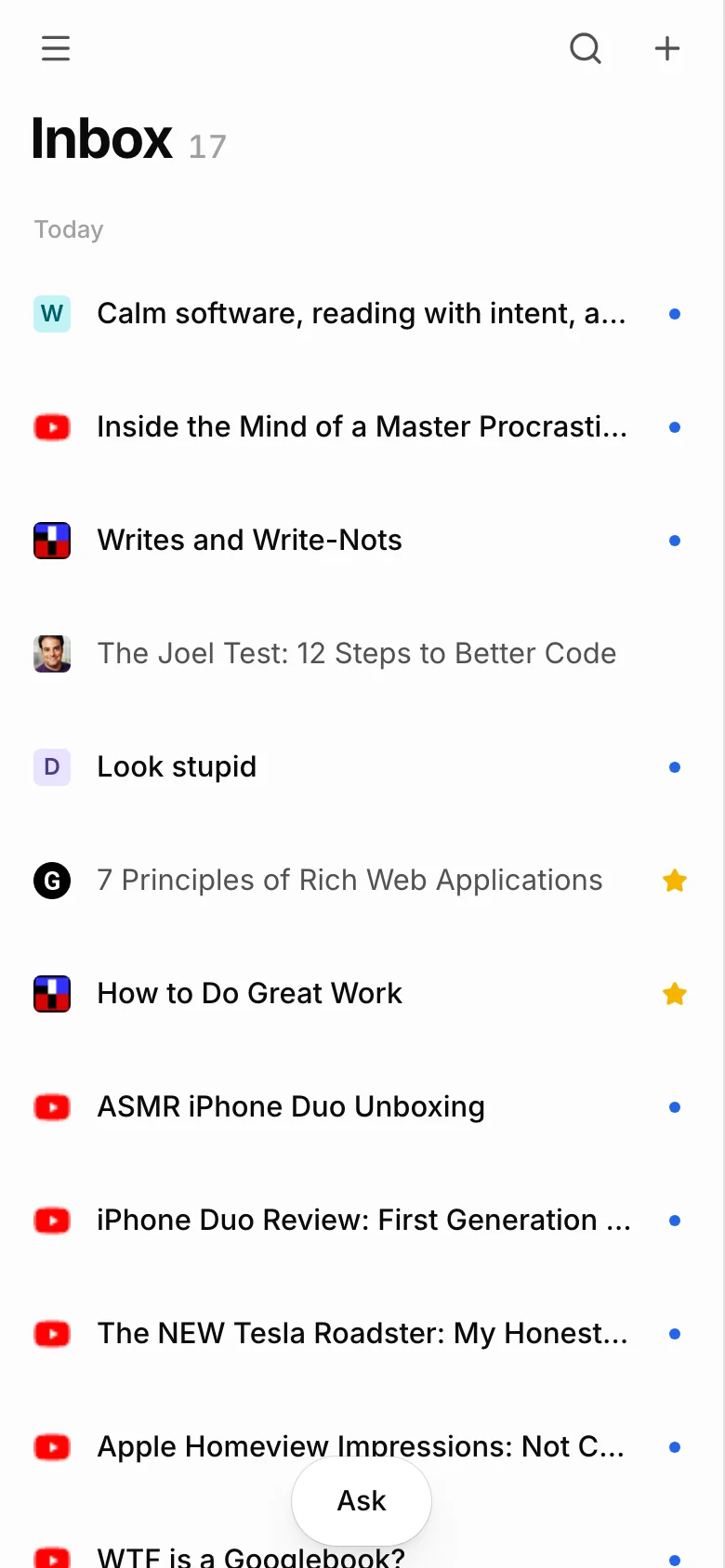
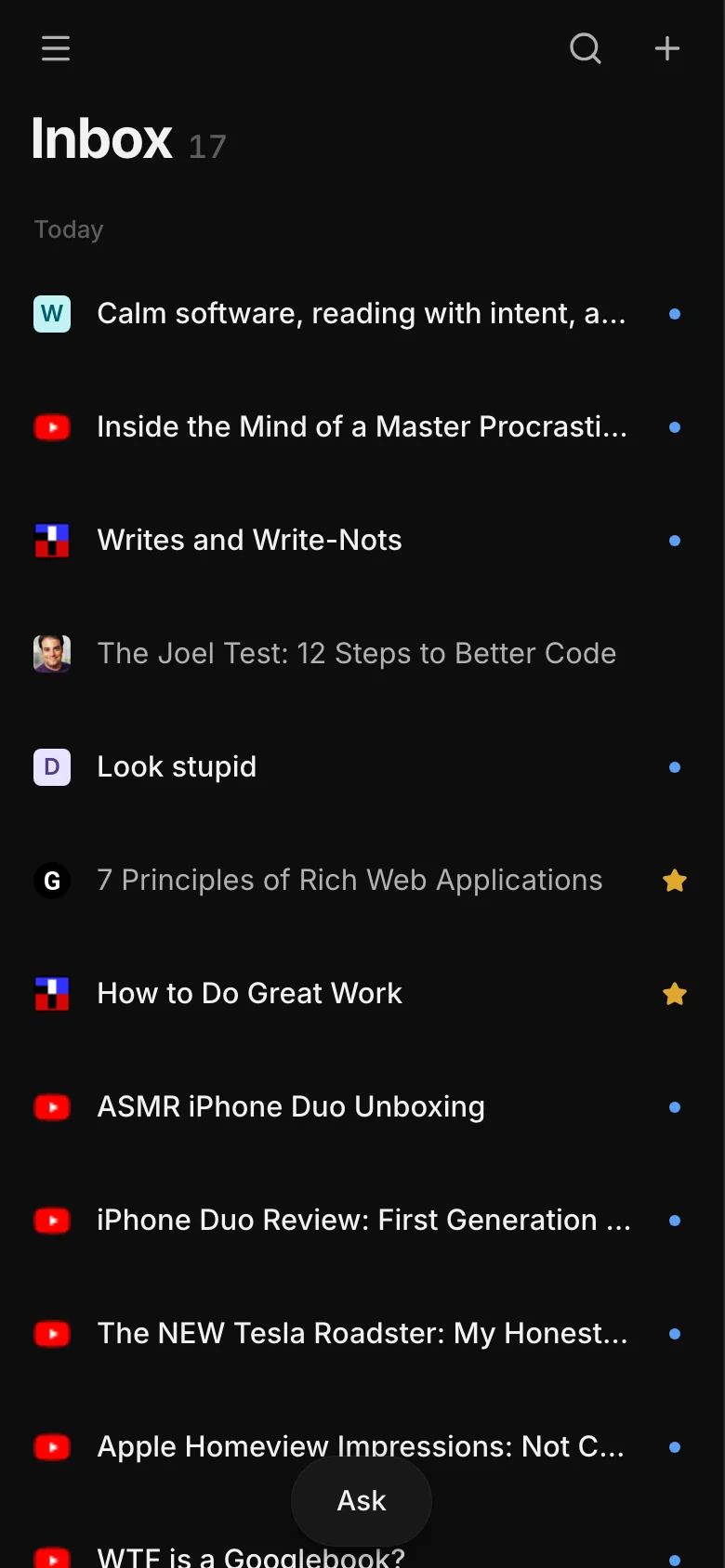
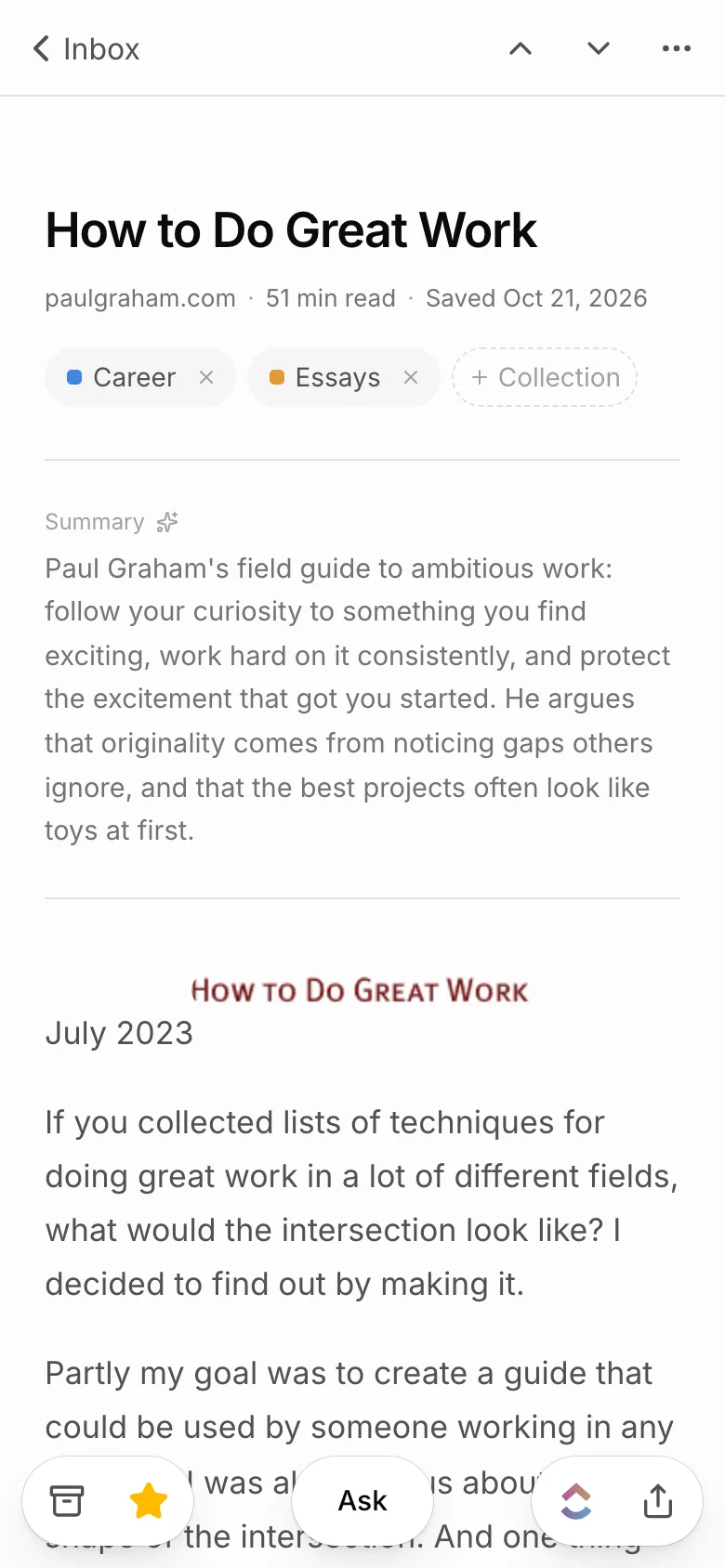
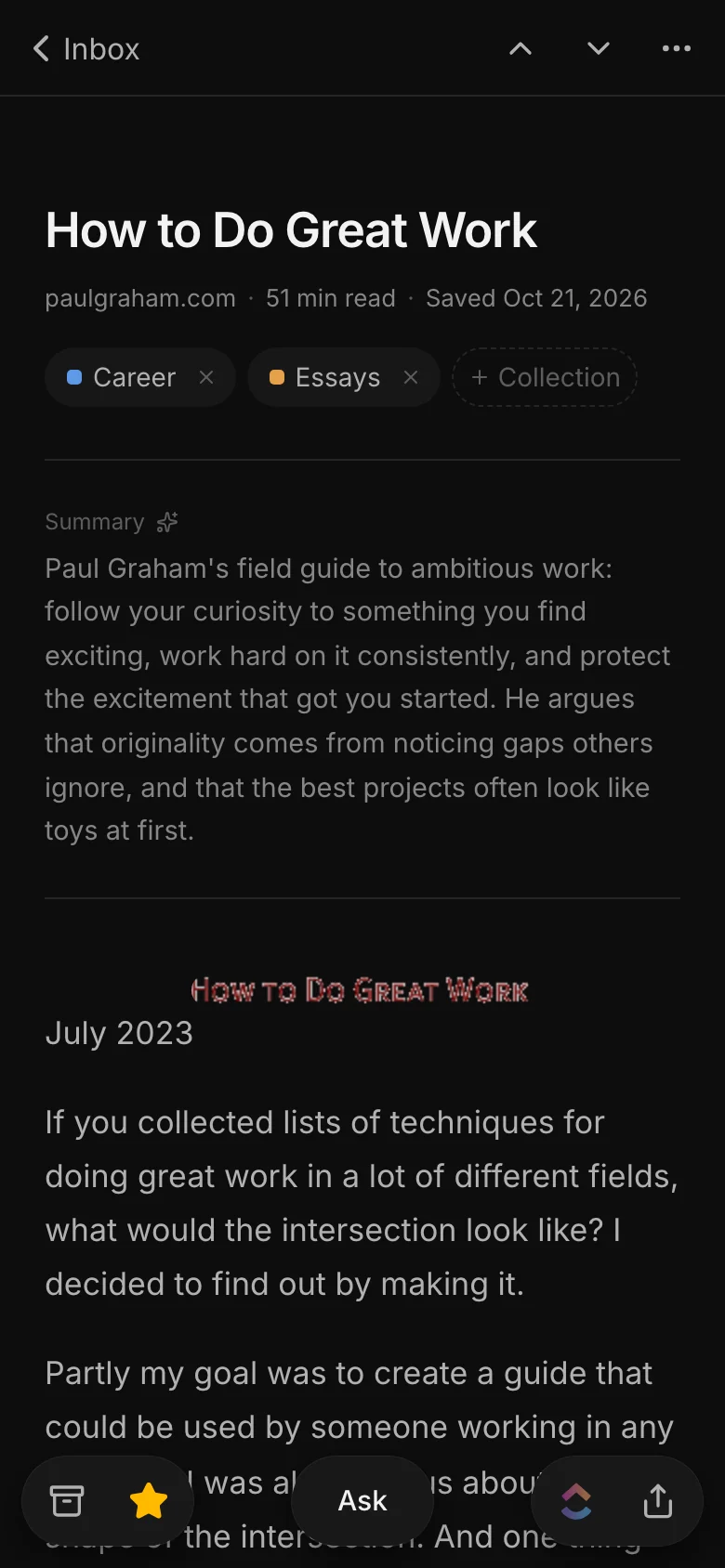
- Swipe a row right: to favorite it, left to archive it (with Undo).
- Press and hold: a row to start selecting.
- Swipe in from the left edge: to open the sidebar, and back from the reader to the list.
Keyboard shortcuts
Anywhere
The open link
Selecting
Settings and your data
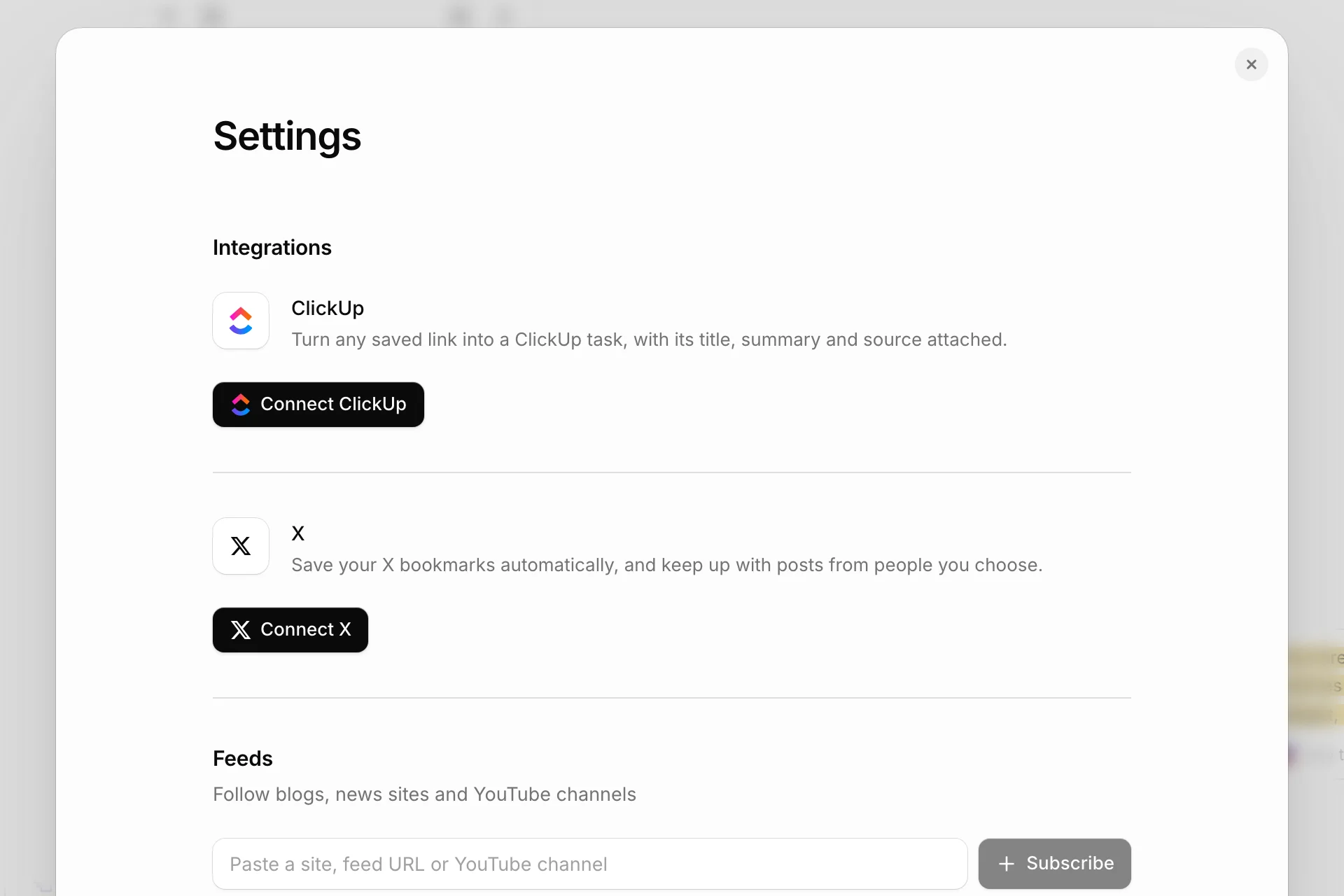
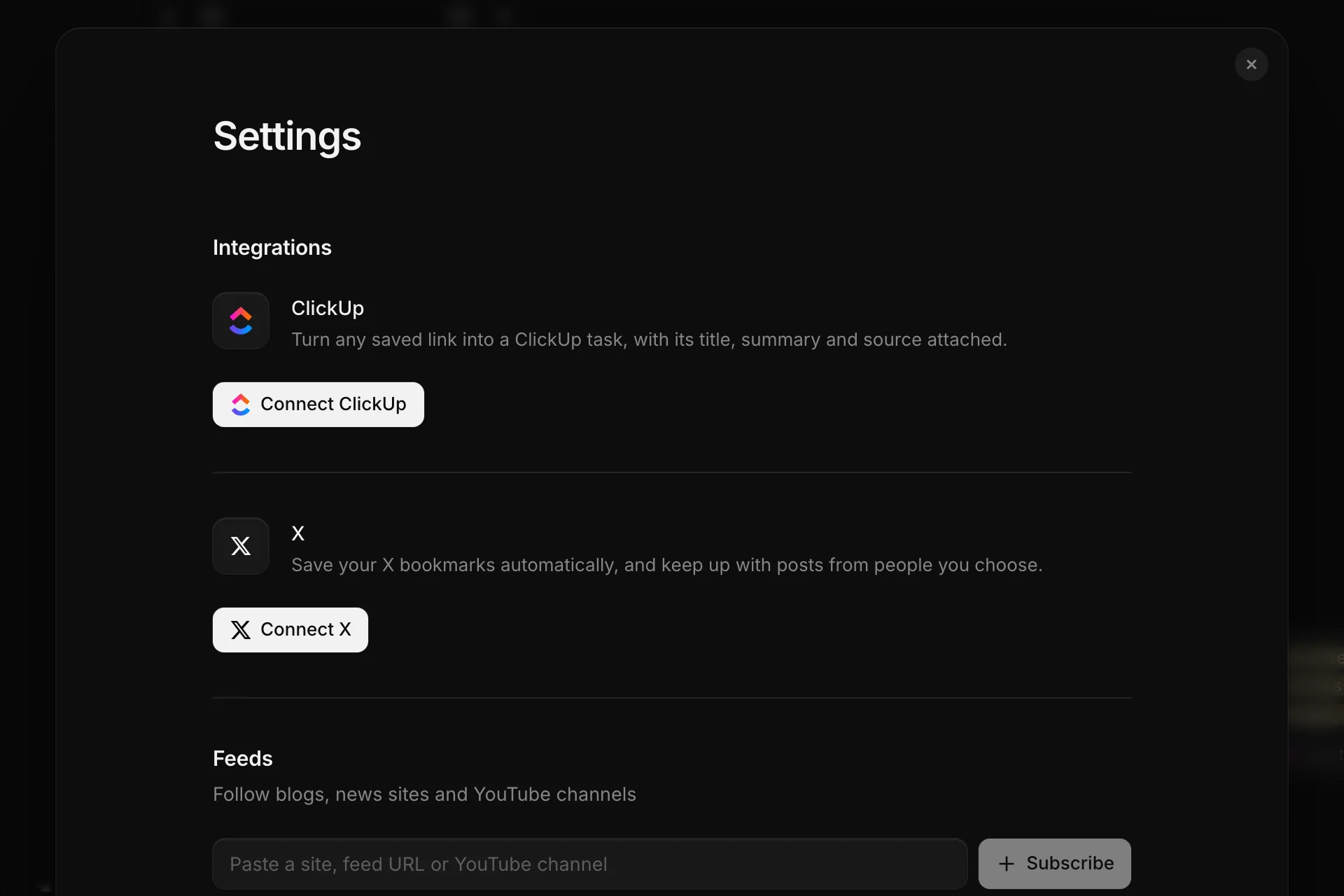
Open Settings from the account menu at the bottom of the sidebar to connect ClickUp and X, manage feeds and newsletters, connect AI assistants and choose a theme. Reading there turns the highlights on the empty page on or off.
Your library is yours. Export library downloads every link with its collections, status, highlights and notes as JSON, any time.
Something broken? Choose Report a bug in the account menu, describe what happened and attach up to three screenshots.